Why Your Face Changes in AI Singing Videos: A Review Checklist
 Tiny Desk AI Team
Troubleshoot face changes in AI singing videos. Prepare a clear reference portrait and check identity, lighting and motion at the start, middle and end.
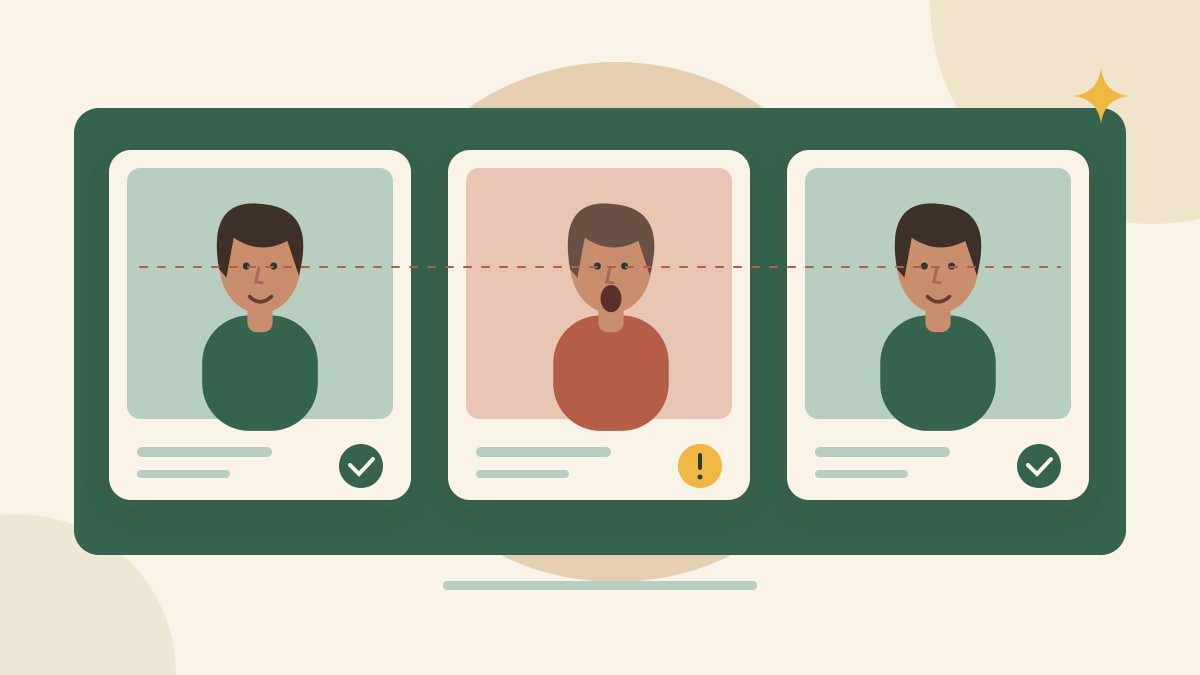
A generated singer can resemble your photo in the first frame and look different later. Treat that as a reason to inspect the whole clip, not just its thumbnail. This guide provides a review method and practical inputs to try; it is not a measured explanation of any one model's failure.
Product status, October 29, 2026: real video examples are available, but we have not published an identity-consistency benchmark. A successful file or one convincing frame does not prove stable resemblance throughout a clip.
First identify what changed
Compare the portrait with the beginning, middle and end of the video. Note visible changes in face shape, eyes, hairstyle, skin detail or clothing. Distinguish a lighting change from a different facial structure. Also check the moments around a head turn, a microphone crossing the face or a large mouth movement.
These observations help describe the problem. They do not reveal the model's internal cause. A warped face, a mismatch from the first frame and a face that gradually changes are different issues; record which one you actually see.
Prepare a useful reference portrait
Start with one clear, unfiltered photo of the authorized person. Aim for an unobstructed face and even lighting. Check that resizing or cropping has not made the face too small. Keep a copy of the original so you can compare against the same input each time.
For a primary-source example, Runway's image-reference recommendations favor even lighting and a neutral expression. Those recommendations concern its image workflow; they are a useful input checklist, not a tested result for our video pipeline.
Only supply extra angles if the actual tool supports them as identity references. Our current public form accepts one lead portrait. A collage may introduce ambiguity instead of supplying useful extra views; do not assume several faces in one file are treated as one person.
Simplify one condition at a time
If your chosen live tool supports the controls, try a restrained action and a steady medium shot before a large turn or moving close-up. Compare a short test before committing to a longer sequence. These are suggested experiments, not proven fixes.
Keep the photo, scene, audio and other settings constant while changing one condition. Record the seed when offered, but do not assume it makes separate requests identical. Changing everything at once makes it hard to know what helped.
A request such as “preserve the person's identity” can state your intent; it cannot certify the result. Repeating that phrase is not evidence that a model will maintain resemblance.
Use a simple comparison log
For each attempt, record:
- Input photo and the person's permission to use it.
- Tool, model, date, scene, prompt, duration and camera setting.
- Frames or timestamps where resemblance changes.
- Whether mouth movement, lighting or occlusion changes at the same moment.
- Whether the clip is usable for your purpose, and why.
You can score “recognizable to me” as a personal review, but do not turn that into a public accuracy percentage without a defined evaluation method. Keep failed attempts in the record rather than showing only a lucky example.
When to change the workflow
If a fixed template cannot preserve the person well enough for your purpose, consider a different workflow or using a real recording of the person with permission. Extra reference images, audio-driven animation and video-based approaches have different requirements; our comparison guide helps frame those questions without promising a winner.
Identity and lip-sync are separate. A stable-looking face may still sing out of time, and good mouth timing may coexist with facial drift. Use the audio review checklist as a second pass. For the current product steps and private upload details, see the one-photo tutorial and privacy policy.